 Doc Summary

Introduction
Knowledge base documents are a must for IT department, without it, it is difficult to keep track on every solution and workaround that we make. During development and/or administrating our system gets more complex after each implementation and because of that, the chance of something to break increases. As we keep fixing bugs and making workaround in limitations, we sometimes do not share the methods we use to achieve this with others until it is needed for them, or we do share the methods, but it gets forgotten the next day. Tracking current problems is also a big task and using only the ticket system won’t help us to solve this issue. Making this development/administration documentation will solve this problem for us and for the newcomers to the IT department. This document will be mentioning both salesforce and Metida Sky. Salesforce is a CRM platform with tools to help developers customize the platform to their needs. Metida Sky is a custom configuration set built in the salesforce platform.
Metida Sky database structure
The most important aspect of any system is its database structure, every feature’s structure and optimization did, does and will depend on how the database is configured. The more objects we add, the more difficult and time consuming it will become to implement a feature. Of course, sometimes you must add a new custom object, but it is important to give a long thought about not only if you need to create a new one but how to do it especially if you plan to relate it with another object (which 90% of cases it is going to be).
Lookups, Master Lookups and Junction Relationships
In Metida Sky we use three kinds of relationships between objects and custom objects:
- Lookups – A standard one-to-one relationship field between objects. To relate them in flows and/or code, you must assign the records ID to the lookup field of that object. In records they also act as redirect links for that record. If one records get deleted, the other does not get deleted.
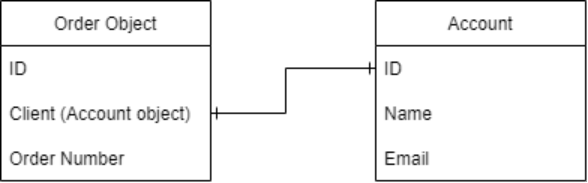
pic. 1 one-to-one relationship example
- Master Lookups – has the same one-to-one relationship structure but if the master record that contains the master lookup field is deleted, the child record gets deleted as well.
- Junction Lookups – these are our custom created junctions. They are a custom object records that we made for a many-to-many or many-to-one relationship solution since salesforce doesn’t have a standard many-to-many/many-to-one relationship feature. These records are displayed in the related tab usually found on the right side of the record.
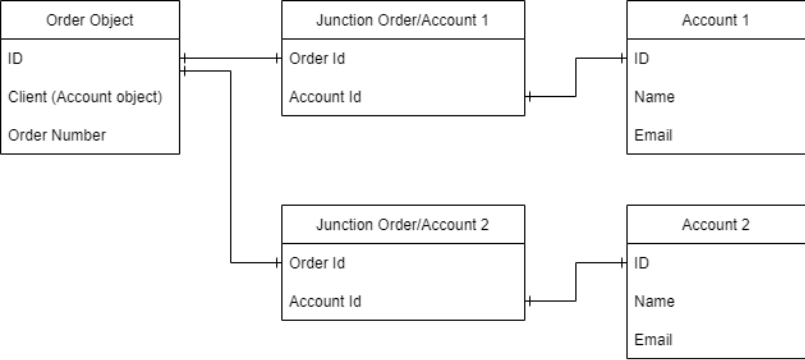
pic. 2 one-to-many relationship junction example
The list of junction objects that we have created can be found in the “Object Manager”.
Naming structure
Having ground rules for titling new objects and/or its fields will help IT members to easily identify what field they need to use while developing/planning new features and help fixing bugs faster. No one wants duplicated titles and other irregularities that force you to double check if you are looking at the right place.
Every aspect (fields, processes, apex code, object, record….) in salesforce can be named, they either include label and API name or just the API name. Labels are possible to duplicate but avoid it as much as possible, but API names cannot be duplicated.
- If a label includes spaces, then in API name replace spaces with underscores “ _ “.
- If it is not possible to name the label in a way so it would not be duplicated, add a prefix to the API name. Ex. Label: Number, API name: Acc_Number.
- Always capitalize the first letter both in label and in API name.
- If you are not sure how to name something look around to find something similar or consult with other IT members.
Profiles, permission sets and groups
Profiles
Each salesforce user is in a certain profile:
- Metida Sky Admin – Used by IT members and other users like the Director of Administration and CMO. Has all permissions for every object and settings
- Metida Sky Advanced Admin – A leftover from our ex-IT member. Needs to be deleted.
- Metida Sky Latvian Platform – Users who are in Latvia METIDA office.
- Metida Sky Marketing User – Users from Marketing department.
- Metida Sky Platform User – Users with “Salesforce platform” license.
- Metida Sky User Platform + CRM – Users with “Salesforce” license.
- Read Only – Planned for customers for browsing their orders and available services.
Users with “Salesforce” licenses have more flexibility on customizing permissions and have access to standard salesforce CRM functionalities while users with “Salesforce platform” do not.
Each profile has its own permission settings, that can be either permission to use specific object, automation, lightning pages, to edit specific fields and so on…
Permission sets
It’s a set of permission than can be assigned to either a specific user or a profile. Permission sets are used for either adding or removing permissions for users without changing permissions for other users in the same profiles for more data control.
Groups
There are two types of groups:
- Personal groups – Each user can create groups for their personal use. For example, users might need to ensure that certain records are always shared within a specified workgroup.
- Public groups – Administrators and delegated administrators can create public groups. Everyone in the organization can use public groups.
Sandbox, staging and production environments
Every system has their own different environments either for testing or for making a new feature. It is crucial for a system to have different environments so the IT members can test and create in a safe space where it would not matter if something broke or not. Creating and/or testing features in the production environment is NEVER a good idea because users are working in that environment and if something goes wrong then we must fix it and overall, it will look bad/unprofessional for us. Here is a breakdown of the environments:
- Sandbox – As the name suggest, this is your sandbox… Do everything you want in there; it won’t affect the other environments in any way. Mostly used for big projects that can last for either a week or a couple of months.
Note: Sandbox environments do not include records that relate to other record triggered processes, because of that, your feature can trigger on of these processes and will show an error so you might need to deactivate them.
- Staging – A partial copy of the production environment. Since not all data comes from production the Sandbox note should also be considered here. Used for smaller projects/changes/bug fixing. Do not make big changes in staging if that change is not in production, this can sometimes confuse other IT members if the content is in production or not. Should be refresh each Friday around 16:00.
- Production – User environment where all their work is done. The content that goes there should be extensively tested and optimized, the less time you spend doing that, the more probability that your feature will break. Try to make as less “Test” records as possible to keep the database cleaner.
When deploying change sets from sandbox to production environment like fields and flows, they have to be activated after deployment. Deployed field settings need to be changed so that users could see and/or edit them, this can be done by going to that field in object managed and checking all the boxes in
Lightning pages
Used for customizing record pages. Each record type or App should have their own lightning page for possible future changes to a specific record type. If two record types have the same lightning page, then the changes will occur to both record types.
You can add standard components to the pages like chatter, email, tab section, flow process… You can also add custom made components that are either made by us or downloaded from the app store.
Flow builder
One of the main tools for automatization. For creating an optimized flow process takes practice, planning and patience. This section is going to go in details how we use it and show some workarounds that we found or made for better quality.
Flow types
- Screen Flow – The only flow type where you can make custom UI to guide users through the process. If the process includes user input and/or data output to show on screen, this is the type to pick.
- Record-Triggered Flow – Flow that is triggered when a record from a specific object is edited/created/created or edited/deleted. Can be used for editing records in other non-related objects.
- Schedule-Triggered Flow – Triggers at a specific date and time. Can be triggered either once, daily or weekly.
- Platform Event-Triggered Flow – Triggers by an event such as a process error. For ex. we use it to send emails to IT email inbox to notify if a user has received an error.
- Autolaunched Flow (No Trigger) – Flow to be called in apex codes, other processes, REST API…
Elements
A flow process is made of elements. Elements are grouped into sections and perform different actions such as:
| Interaction: | |
| Used for user input and data output. It is possible to add custom made components. | |
| Used for calling custom apex actions, mostly used for issue workarounds or non-salesforce standard features. | |
| Used for triggering other flow processes. | |
| Logic: | |
| Used for assigning values to variables. | |
| Used for conditional branching. | |
| Used for pausing the process based on set condition and resuming on set time or event. (Only in Schedule-Triggered and Autolaunched flows) | |
| Used for looping collection variables. | |
| Used for sorting values in a collection variable. | |
| Used for conditional filtering out values in a collection | |
| Data: | |
| Used for creating records with set values from variables or hardcoded values. | |
| Used for updating records with set values from variables or hardcoded values. | |
| Used for getting records with or without conditions. | |
| Used for deleting records. | |
| Used for rolling back created/edited/deleted records. |
NOTES:
- Data elements send out SOQL queries to perform actions. Max SOQL queries that can be performed in one process session is 100.
- You can’t add a screen flow process as subflow in a non-screen flow and you can’t add scheduled-triggered flow as subflow to any other flow processes.
- Flow builder has two layout options: Auto-Layout that sorts the elements and connection automatically and Free-Form where you sort the elements and their connections manually. Auto-Layout will always spread out the elements far away from each other if your process has a lot of loop or decision elements, but it will be easy to follow for others while Free-Form allows you to be more precise with the process structure and with enough practice you can make structure to use less space on the canvas and be easy to read.
- PLEASE LABEL ACTIONS ACORDINGLY. When you have a big project, seeing a canvas with hundreds of elements is an enough headache. Labeling elements and decision outcomes based on their action will help not only you but other to orientate how this flow works. This will also help you remember when you need to update the process after some time. (Ex. Update PAT Order, Stack Account Ids to Col, Invoice Record is NULL…)
Custom apex actions
We do use apex actions for limitation workarounds and other features that salesforce standard tools do not have for more flexibility in making a process. The list includes not all apex action but most used ones:
- Redirect – A button that redirects users to a record. Can use either a URL or a much more preferred way, using the record’s Id
- Send email – Salesforce standard action. Used for sending emails.
- Send better email – A unofficial salesforce component. Has more customizable features on how you send emails and a feature to send email with attachments.
- Get records with IN clause filter – A custom action for lowering the SOQL queries when trying to mass get records. There is also Get records with IN clause filter AND query, that allows to input more condition on which records to get.
- MultiSelectFlowValues – Action to convert multiselected values from a screen component (Radio buttons, multiselect drop down list….) to a collection variable. Without it, flow builder puts the values in a simple text variable.
Limit considerations
There are two types of “limit reached” errors that can occur after launching your flow:
Number of Iterations Exceeded – When a flow passes through an element, that is considered one iteration. Max elements that can be executed at run time is 2000.
That is why it’s important to use as less elements in a canvas as possible, most common mistakes are when using a decision element for different outcomes and using loop element.
Tips for lowering iterations:
Try to use formula variables more often. If you see that a feature has a lot of different outcomes, you can use the IF() formula variable to replace not only the decision element but also the other elements that were connected to different outcomes.
Number of SOQL Queries Exceeded – Max query limit is 100… Which is very small for some features. Construct your flows with as less data elements as you can, most known mistake is that people who use flow builder include data elements inside loops which is the fastest way to get that SOQL error.
Tips for lowering SOQL queries:
When looping values for bulk update/create/delete records, use logic elements and record variables to assign data and after loop have one data element to update the records using a record collection variable. Using two assignment elements is better than using one data element since data element have a smaller limit.
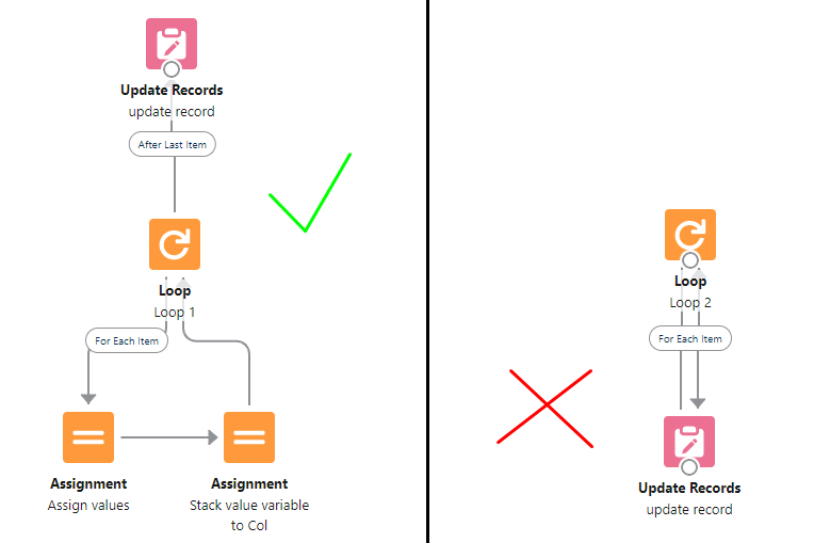
Use Get records with IN clause filter for getting records. With standard tools, you can’t filter which records to get by using a collection variable in your filter list.
Possible Issues
Inactive Accounts
Mantas created a new Account record type called “Inactive Account”. Since users convert created Accounts to Inactive instead of creating new ones, processes and/or validation rules that have an Account Record Type check can break or just not complete the actions.
Most optimal solution, change validation rules and flows to react if the Account is Inactive.
Salesforce Disabling Outlook Integration
Salesforce is retiring Outlook integration in 2024 due to limiting functionalities with internet browsers.
Salesforce recommends implementing Match My Email app. as soon as possible.
Patent Department Improvements
Most required improvement in Patent department is automating mass Patent creation in EPO Communication: A97.1 (Grant of Patent) order. (Similar how TM WIPO Add countries/TM Split worked). Talk to Audronė T. from Patent department for more details.
Second place is improving EPO Integration and Bulk EPO so these processes would not create any Patent and/or Applicant duplicates
Leftover Fields/Flows from Unused Features
Since we are improving features and creating new ones that make the other processes useless, those useless fields/flows/apex classes are left in our database even some of them are active but not included in the UI. It’s difficult to include every single one because of the mess that it brought.
Processes documentation
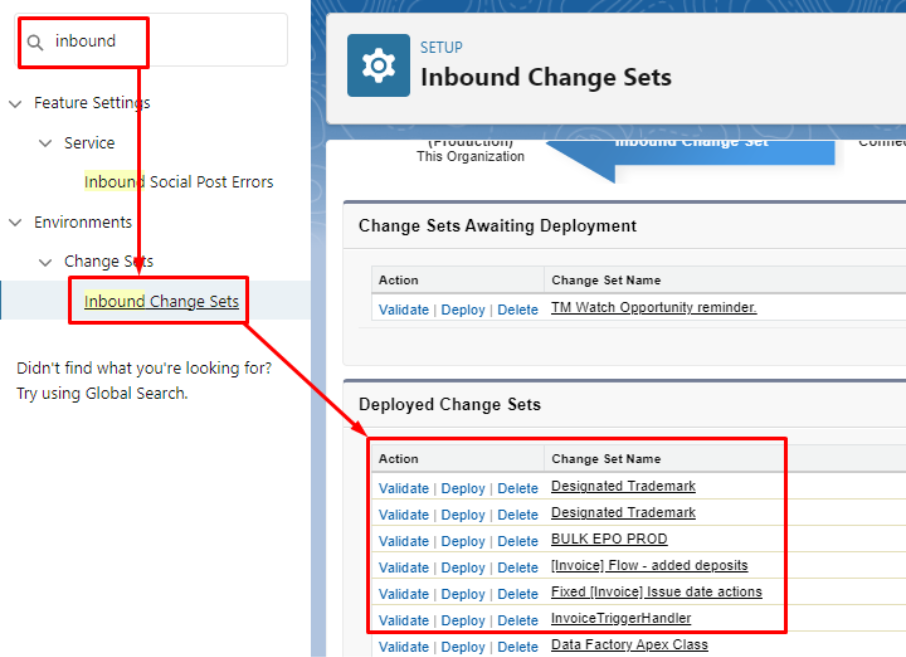
NOTE: All fields/formulas/flows/code/test code that are related to a process can be found in Inbound Change sets in Production/sandbox environments IF THEY ARE STILL AVAIABLE. The more changes sets you add to “Deployed Change Sets” the more they will get deleted starting from the oldest.
Markify Integration
Markify is a company that offers trademark search services. The API that we have integrated with Metida Sky can be found in Trademark Home Page or in “Add trademark” button (TM Renewal Order, TM Recordal and TM Watch).
Integration is used for searching trademarks in their database and pass the trademark information data to Metida Sky and create Trademark records which allows us to have a much more reliable and clean Trademark data in our database.
Stage 2 for this feature is to use leftover monthly API calls as Trademark data police. I’ve added a checkbox for Trademarks to see which ones were created using the API to count how many calls we are using monthly since the calls get reset each start of the month.
Apex Classes developed by Henrikas Mockus:
- FlowMarkify
- FlowMarkifyTest
- MarkifyResponse
- MarkifyWebService
Flows:
Markify:
The whole integration flow is made out of 5 segments.
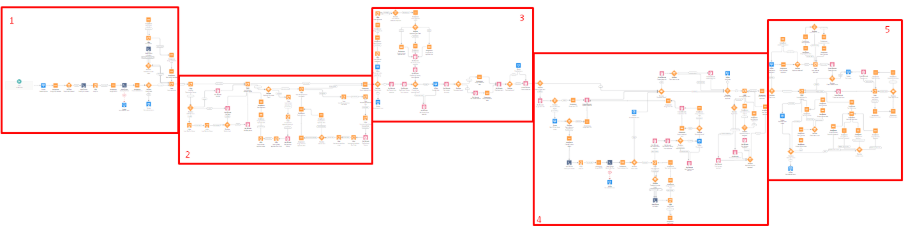
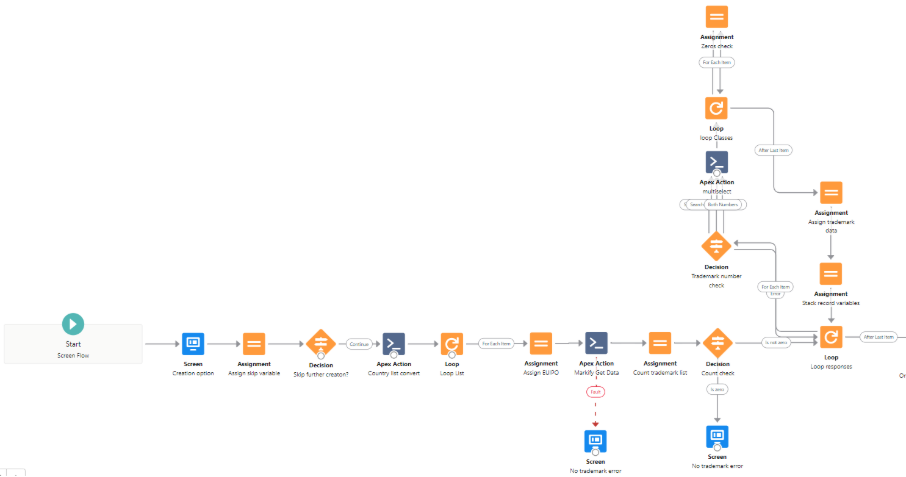
1st segment (Gathering Trademark Information):
- Search trademark screen.
- Uses the FlowMarkify class to get trademark’s data.
- Error screens if class breaks or no data found.
Loop
- Filters trademarks based on search requirement. (App. nr. or Reg. nr.)
- Converts trademark classes to a collection text variable.
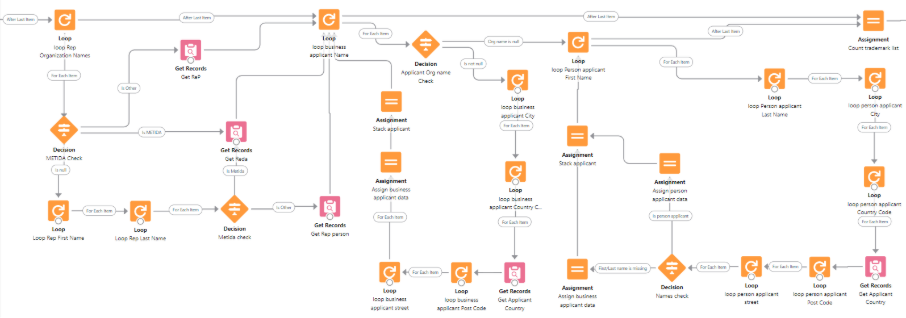
2nd segment (Constructing applicant records):
- Loops representative data from Markify and gets the Representative Account record in Metida Sky.
- Loops Applicant names. Applicant names is what tell if the applicant is person or business type. If Markify passes applicant’s Organization Name, then the flow automatically sets the applicant to business type.
- This segment does not create applicants. Only assigns them to Account collection variables
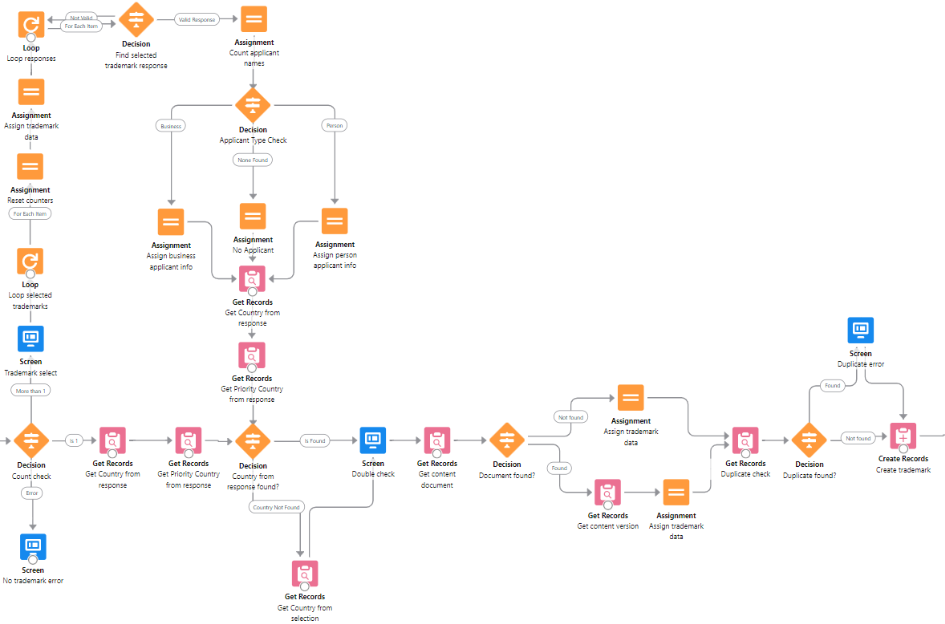
3rd segment (>1 trademark was found, TM info double check, Duplicate check, image assignment and creating TM record):
- Checks if more than one suitable Trademarks are found. If so, displays a trademark selection screen. User can select only one trademark.
- Gets Trademark’s priority country.
- Gets Trademark’s main country. If none found, flow automatically assigns a country from trademark search screen.
- Gets Trademark’s image. The image file was already created in our database by FlowMarkify class. If none found, the flow skips this part.
- Searches for a potential duplicate. If found, the flow will throw a warning screen showing both Markify’s data and potential duplicate’s data for comparison. It is allowed to continue and create the trademark from that screen in case it is not a duplicate.
- Creates trademark.
4th segment (Basic Trademark):
- This segment is for WIPO trademarks.
- If trademark is WIPO and has Basic Trademark data from Markify, the flow repeats the first segment, creates basic trademark and assigns to WIPO Trademark.
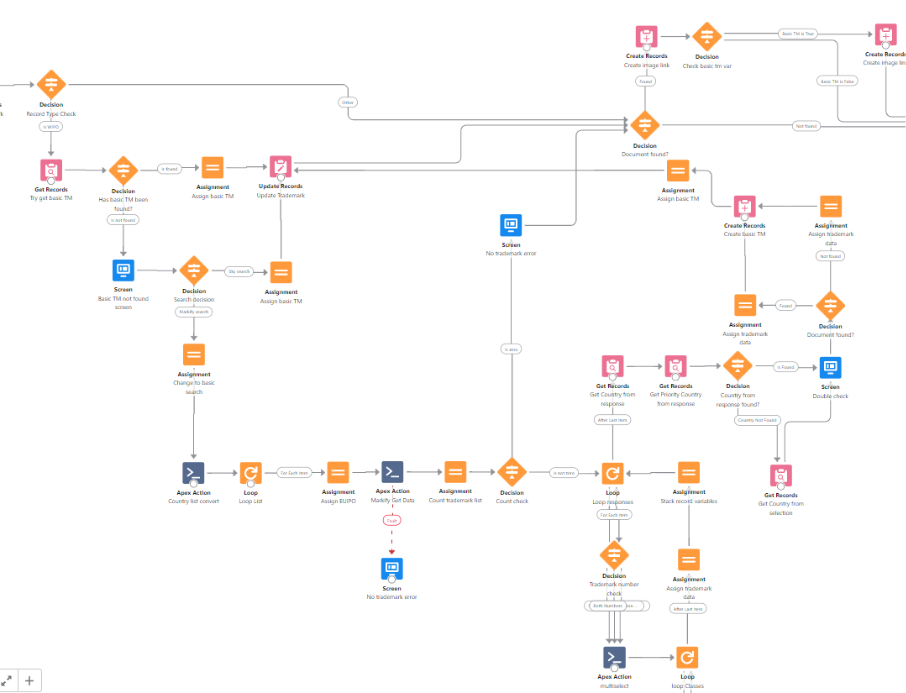
5th segment (Converts Markify applicant data structure to Metida Sky structure):
- Loops the applicant record collection variables and searches for existing applicants in Metida Sky.
- If applicants are found in Metida Sky, the flow opens an applicant selection window. After selecting applicants, the flow creates junctions for trademark and basic trademark if present.
- If no applicants were selected or none were found in Metida Sky, the flow will create new account records.
- Creates junctions for applicants and trademark.
- Finish screen
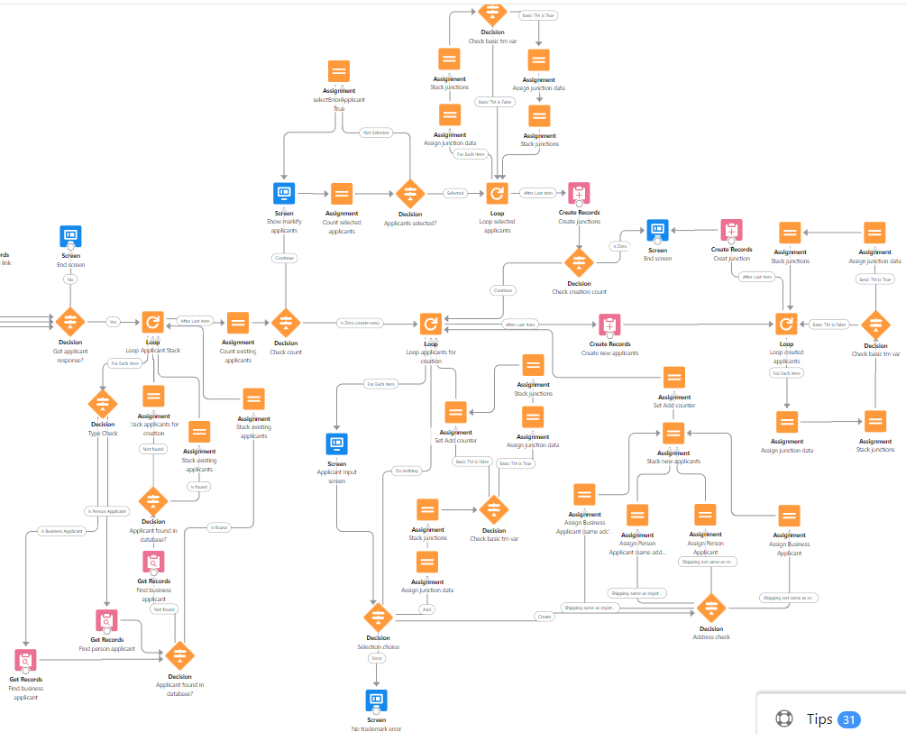
EUIPO Integration
Instead of getting data from other databases like the rest of the integrations that we have, EUIPO integration is used for passing our data to theirs. Instead of filing a EUIPO order twice (in Metida Sky and in EUIPO website), this integration will allow the trademark department to do it all without leaving Salesforce.
NOTE!!!: We do not have filing with priority feature. This was unmentioned, but people at Trademark said they rarely file euipo application with priority but still needs to be implemented. Needs more code from Henrikas for priority information input and flow update.
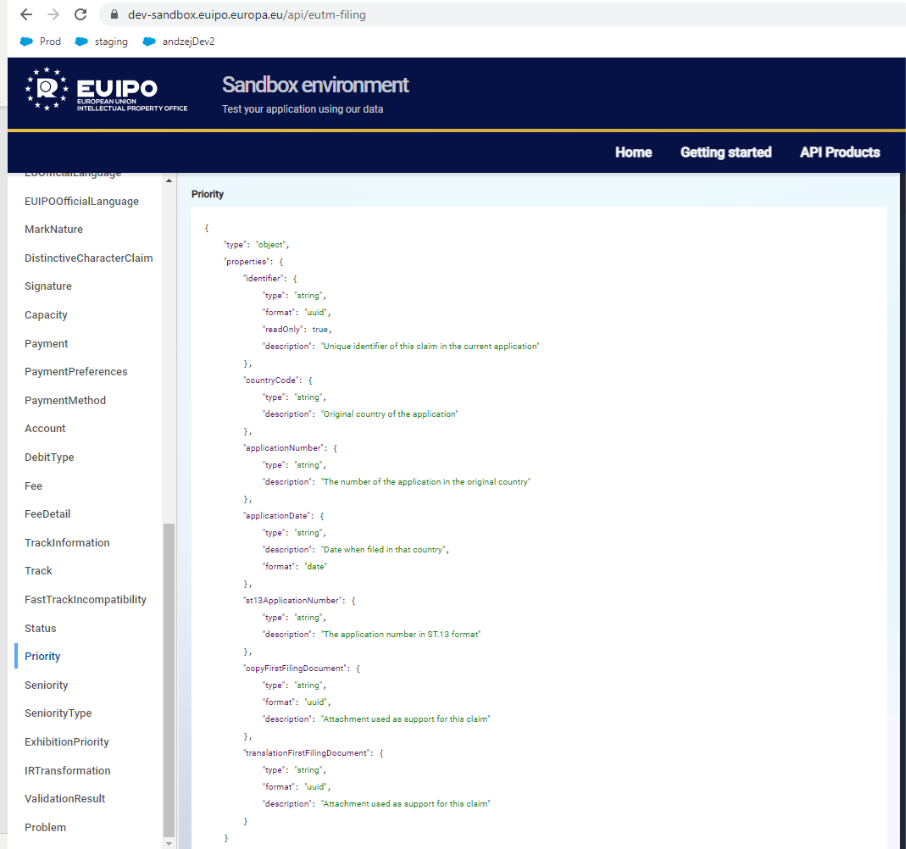
Priority information needed for Filing API
Apex Classes developed by Henrikas Mockus:
- EuipoAuthorisation
- EuipoFileWebServiceMockup
- EuipoFilingResponse
- EuipoPersonWebServiceMockup
- EuipoPersonsResponse
- EuipoWebServiceMockup
- FlowEuipoDocumentUpload
- FlowEuipoDocumentUploadTest
- FlowEuipoFilingOrder
- FlowEuipoFilingOrderTest
- FlowEuipoPersonSearch
- FlowEuipoPersonSearchTest
- FlowEuipoGns
- FlowEuipoClassificationTranslation
- FlowEuipoTerms
Flows:
Harmonized GnS Builder:
Used for building harmonized goods and services so the EUIPO filing could be eligible for FastTrack. The default GnS large text field is NOT used for EUIPO integration because every user writhes GnS differently and creating a formula to harmonize it is impossible. It’s a separate flow that is going to be used in EUIPO Filing order as well.
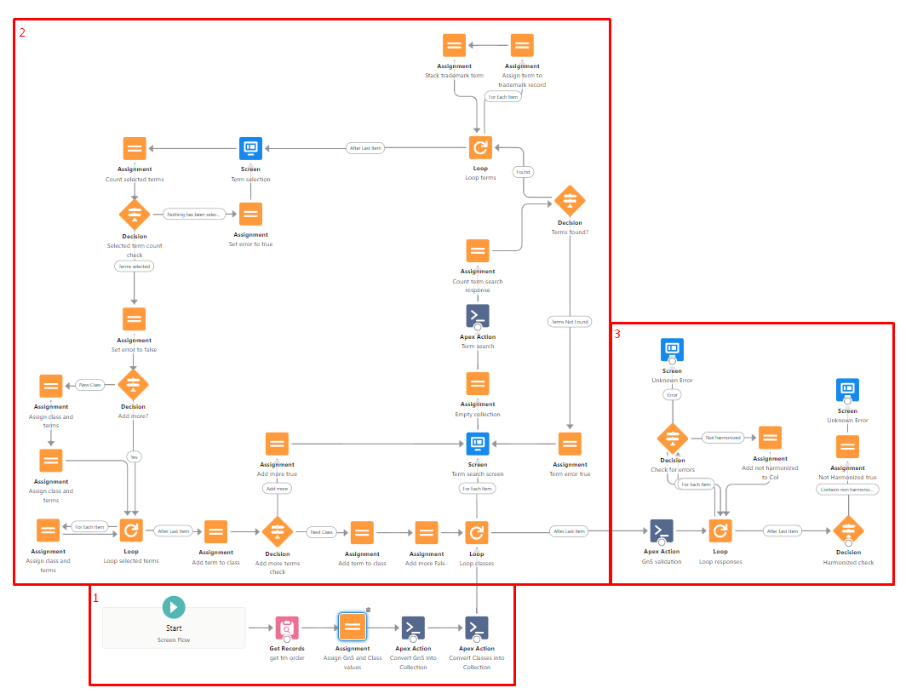
1st segment:
- Gets current order.
- Assigns order’s Class__c and List_of_goods__c values to a text var.
- Converts text vars to text collection vars.
2nd segment:
Loops Class collection var.:
- Screen to search terms by using EUIPO’s GnS API.
- Stacks selected terms into a collection var.
- Screen to select terms that were passed from EUIPO’s API. If no terms found, the flow informs the users to try again.
Loops selected terms:
- There are 7 text variables handling the GnS structure:
- {!classNumber} – used for assigning the class number. Gets added to {!classAndTerms}. Skips this part if user wants to add more terms to the same class.
- {!classAndTerms} – Main text var. containing the class number and selected terms.
- {!term} – Used for collecting selected terms and then added to {!classAndTerms}.
- {!termForFiling} – Used for collecting terms.
- {!termsForFiling} – Used for stacking collected terms from {!termForFiling}.
- {!classTermCol} – Collection text var. Stacks {!trimLastCommaTerm} vars.
- {!termsForFilingCol} – Collection text var. Stacks {!trimLastCommaTermForFiling} vars.
- {!trimLastCommaTermForFiling} – Is a formula variable that removes {!termsForFiling} var’s last comma when the last selected term is looped.
- {!trimLastCommaTerm} – Is a formula variable that removes {!classAndTerms} var’s last comma when the last selected term is looped.
3rd segment:
- Uses EUIPO’s GnS validation API to validate collected classes and terms to check if they are harmonized.
- Loops API’s responses. If one class is not harmonized, the flow adds that response to a collection variable {!nonHarmonizedTerms}.
- Decision element checks if {!nonHarmonizedTerms} is empty or not. If {!nonHarmonizedTerms} is not NULL, the flow shows an error and finishes the flow. If it is empty, the flow continues to EUIPO TM Integration flow.
EUIPO TM Integration:
Main flow where convert Metida Sky’s EUIPO Filing order data structure to EUIPO’s API structure.
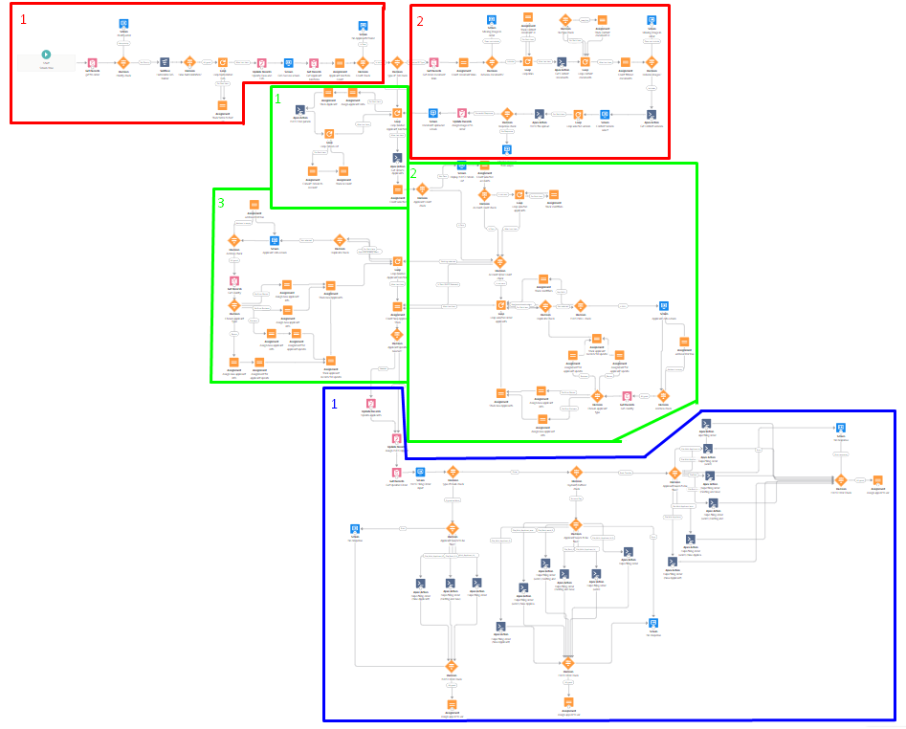
Red section:
- Harmonized GnS building/validation. (1)
Process has been explained above.
- Gives success screen if the classes were correctly constructed.
- Checks for applicants. (If none were found, the process closes.)
- Trademark Picture upload. (2)
- If Trademark is of figurative type, the flow gets all related content documents and filters them out except for JPG or JPEG file types.
- Show picture selection screen. After selecting the flow uploads the file to EUIPO and gets the document Id that will be used for the filing API.
- If Trademark is not of figurative type, the picture upload is skipped.
Green section:
- Searching for applicants in EUIPO database (1)
- Get the applicants’ information and searches for them in EUIPO database. If found, the flow collects their Id.
- Selecting Metida Sky and/or EUIPO applicants (2)
- If the applicants were found in EUIPO, the flow goes to this section. If not, skips to the 3rd green section.
- Shows a screen with two tables. One for selecting applicants found in EUIPO database and one for selecting applicants from Metida Sky database.
- The applicants are collected in different Account collection variables. One for person account and one for business accounts.
- Selecting Metida Sky applicants (3)
- Works similar like 2nd green section but without the applicant selection.
- Gathers all applicants and required to input additional information if the applicant is of person type.
Blue section:
- Some applicants are person types BUT are created as business account record in Metida Sky. The problem about it is that the person’s first and last name are in a single field unlike in the person account record type, where first and last name are in separate fields.
- I added first and last name fields in business account. So if the applicant is a person, the first and last names that were included by the user from the green section part of the flow will be assigned to the account records and updated.
- Assigns EUIPO applicant Ids to the order.
- Show screen for additional Filing information for EUIPO
- Files the EUIPO order by using the File Application API.
There are 18 types of filings.
Bank Payment method:
- Word Trademark with Metida Sky applicants.
- Word Trademark with EUIPO applicants.
- Word Trademark with Metida Sky and EUIPO applicants.
- Figurative (with image) Trademark with Metida Sky applicants.
- Figurative (with image) Trademark with EUIPO applicants.
- Figurative (with image) Trademark with Metida Sky and EUIPO applicants.
- Figurative with word elements Trademark with Metida Sky applicants.
- Figurative with word elements Trademark with EUIPO applicants.
- Figurative with word elements Trademark with Metida Sky and EUIPO applicants.
Account Payment method:
- Word Trademark with Metida Sky applicants.
- Word Trademark with EUIPO applicants.
- Word Trademark with Metida Sky and EUIPO applicants.
- Figurative (with image) Trademark with Metida Sky applicants.
- Figurative (with image) Trademark with EUIPO applicants.
- Figurative (with image) Trademark with Metida Sky and EUIPO applicants.
- Figurative with word elements Trademark with Metida Sky applicants.
- Figurative with word elements Trademark with EUIPO applicants.
- Figurative with word elements Trademark with Metida Sky and EUIPO applicants.
If the Filing process is done correctly the API will return an Application number that will be automatically assigned to a new Trademark record in Metida Sky.
REQUIRED CHANGES AFTER 2022-11-25 MEETING:
- Replace GnS builder. Some orders have a long list of terms and using the builder will take a long time harmonize them.
Instead of users searching and applying terms themselves, it is needed to build the harmonized GnS from GnS_list in EUIPO filing order automatically using GnS search API in the flow and use the GnS validation API to check if it was built correctly.
- Not all application will have harmonized terms.
- Minimize as much manual work as possible. Add Draft screen before filing the application with all information regarding added applicants, GnS and application information.
- Add filing with priority. As of now we cannot file EUIPO application with priority. Needs more coding for Priority input and EUIPO Integration flow update.
- Add a feature where if an API error occurs, send the error message to IT
- After filing to EUIPO, get receipt document and attach to Metida Sky Filing order.
- Add a payment sum calculation in the draft before filing the application to EUIPO.
- Required more testing and learning how exactly the Persons API searches for applicants and or representatives.
- Replace First Language and Second Language text fields in EUIPO Filing Order input screen to picklist field and change them in 18 Filing APIs. The picklist output should be the language ISO Code (EN, LT, LV…)
Designated Trademark
It was decided to change how TM WIPO works. Instead of adding country junctions and then create trademarks with the countries, now “Add Countries” instantly creates Trademarks with new record type “Designated Trademark”. “TM Split” button was removed and related process with the button should be deleted from Production.
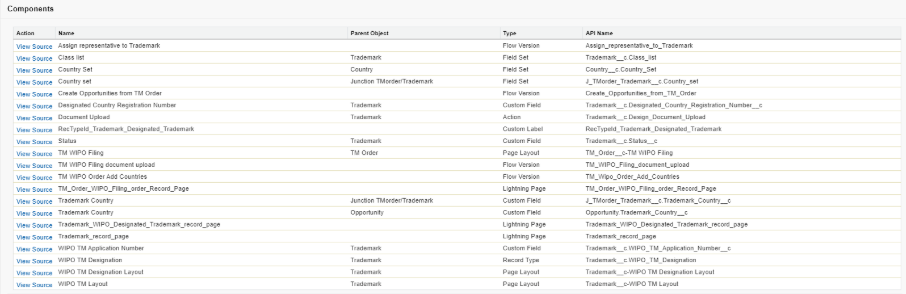
Flows:
- Assign representative to Trademark
Added a Trademark recordTypeId check to ignore designated trademarks.
- Create Opportunities from TM Order
Added a separate screen for trademark selection because it needs to display different trademark information in the table.
- TM WIPO Filing document upload
Added a separate upload path for designated trademark. Has only two types of file upload (Registration Certificate “Grant” and Other)
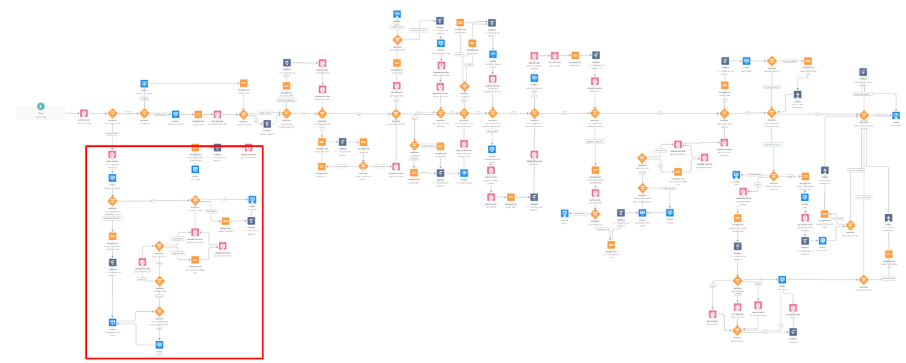
- TM WIPO Order Add Countries
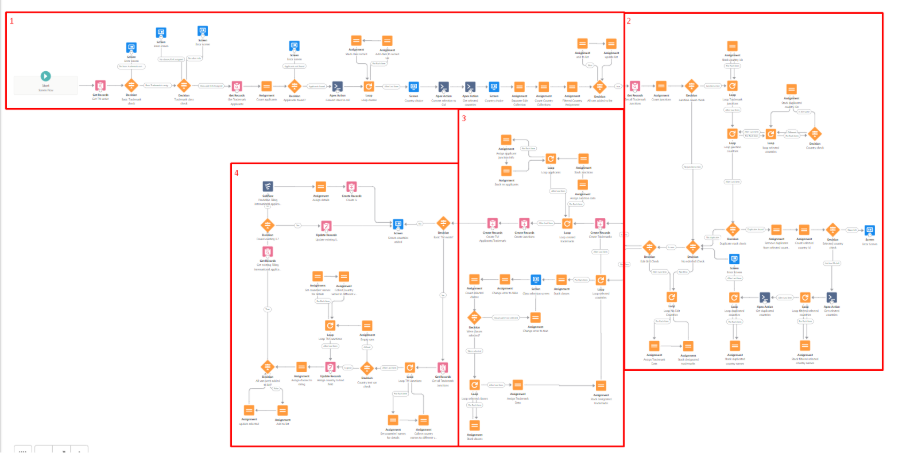
Repurposed the process. Instead of adding TM Order/Country junctions, this flow now creates Designated Trademarks from selected countries.
1st segment:
- Checks if order has a basic trademark assigned (if not, the process ends).
- Checks if trademark has all the required information which are: GnS, class, Trademark Name, Type of Mark and trademark image if figurative type. (if any one of them is missing, the process end)
- Checks of Basic Trademark has applicants. (if not, the process ends)
- Converts class text to text collection which will be used in 3rd segment.
- Screen for selecting countries.
- Collects selected country records and show screen to which selected countries require GnS edit. (if none selected, all classes and GnS will be transferred to Designated Trademarks)
- Collects country names into a collection for Invoice Line creation in 4th segment.
2nd segment:
- Used for duplicated country selection check. (May as to remove in the future)
- Gets all order related Designated Trademark records.
- If junctions were found, the flow loops all countries in the Designated Trademarks, loops selected countries from screen, in a different loop compares the two countries. If they match, they are stacked in a different collection variable.
- Collects duplicated and selected countries records and displays which are duplicated and which are not in a screen for the user. I only duplicated were selected, shows a different message screen and the process ends.
- If no duplicated countries were found OR no designated trademarks were found this segment is skipped.
- Checks for countries that were selected for editing. If so, the flow stacks the countries in a separate collection and assigns FULL GnS to Designated Trademarks.
3rd segment:
- Loops countries that were selected for editing.
- Shows screen for selecting class and terms. (You can only select the classes that are assigned in Basic Trademark. Cannot add more)
- Loops selected classes, assigns them to the Trademark record variable and stacks Designated Trademark records.
- After countries loop, the flow creates all Designated Trademarks that were collected in record variables.
- Loops created Designated Trademarks, stacks junction record variables and creates Applicant and TM Order junctions.
4th segment:
- Used for creating Invoice Lines.
- 250-character IL Details limit was added.
- Collects country EN and LT names from Designated Trademarks.
- Stacks the names in separate LT and EN variables. If 250-character limit is reached. The flow uses country ISO codes in the invoice line details.
- Creates Invoice Lines based on Basic Trademark’s classes. (If invoice lines were created this segment is skipped)
Purchase Invoice/Invoice Changes
Main changes include:
- Generating Invoice PDF and issuing a new number (developed by Arnas Baronas)
- Invoice/Purchase invoice lock feature
Users started editing important data in even two months issued Invoices so creating a lock feature was a must for Invoices to have more reliable Invoice data.
Validation rules (ignored for Reception and Admin Users or the invoice is draft):
- Fields_Change_Rule
- Removes ability to change number, Total Fees and Payer if current month’s day is 15th or later.
- Invoices also have a Bypass__c checkbox field that Users cannot see or edit. Used for flows to quickly disable the validation rule, change information and then reenable validation rule. If Bypass__c is true in the invoice record, the validation rule will not work for that specific record.
- Payment_Date_Change
- Blocks users to change payment date if it was already entered.
- Issue_Date_Change
- Works the same as Payment Date rule.
I’ve also added date checks to correspond with Fields Change Rule for invoice related flows:
- Change issue date
- Apply Discount
- Create Invoice flows
- Create Credit Note
- Add 10%
- Issue invoice to Metida SIA/Beijing
- Purchase invoice earnings calculation in different currencies.
Roll-Up summary fields take expired conversion rates that need to be updated manually if using a different currency. Since we started getting more and more PUIs with currencies that are not EUR it caused many accounting issues. So now the system takes updated conversion rate from PUI, converts the sum into EUR and assigns the sum to PUIL’s and by using a new Roll-Up summary field it sums all the converted service fees and calculates earnings accurately.
Invoice Line fields:
Purchase_Lines_Service_Fee_EUR_SUM__c (Roll-Up sum of PUIL’s Converted_Service_Fee_EUR__c)
Purchase Invoice Line fields:
Conversion_Rate__c (Populated by FlowPurchaseInvoiceLineConnectionClass apex),
Converted_Service_Fee_EUR__c
Purchase Invoice Line Connection apex class is used for creating purchase invoice lines. I added a field update for PUIL. It takes PUI’s conversion rate and assigns to PUIL’s Conversion_Rate__c field.
The Converted_Service_Fee_EUR__c field is a formula that calculates the service fee with the Converstion_Rate__c field.
Second Account Pricing Changes
Main changes include:
- Valid until date
Added optional Valid Until date for all pricing types. If the date will pass, the pricing will not be used in Invoice Lines for the account that was added. If pricing will not include a Valid Until date, the pricing will never expire.
“Predefine Invoice Line” is the flow that checks the valid until date.
- Creation/duplication check limit increase
Created two new apex classes which are similar to Karolis’ account pricing apex codes. (“Create Second Level Account Pricings and returns duplicates” and “Overwrite duplicate values of Second Level Account Pricing”)


